
Piggyback loans, also known as concurrent or 80/10/10 loans, are loans completed simultaneously with the primary loan on a property. Encompass offers a Duplicate Loan feature within the Pipeline to streamline the process of setting up piggyback loans. Here’s a detailed guide on how to create and process piggyback loans using Encompass:
The following features of piggyback loans are supported in Encompass:
- Concurrent loans for a borrower from the same or different lender.
- Ability to duplicate the information and verifications gathered from the first loan to second loan.
- Ability to track the progress and milestones of each loan separately.
1. Open and Gather Information for the 1st Mortgage:
- Start by opening the 1st mortgage loan file.
- Gather all necessary information, including borrower details, on the Borrower Summary, 1003 form, 2015 Itemization, verifications, and other relevant loan forms. It’s crucial to complete as much information as possible at this stage.
- Additionally, order credit reports, appraisals, and any other required services for the 1st mortgage.
2. Duplicate the 1st Mortgage to Create the Piggyback Loan:
- Right-click on the loan in your Pipeline.
- From the shortcut menu, select “Duplicate Loan.”
- Choose “Create a second lien linked as a piggyback using the data from the selected loan” and click “OK.”
- A duplicate of the loan will be created and added to your Pipeline.
- The piggyback loan will be assigned the next sequential loan number.
3. Changes Made to the Duplicated Loan:
- When you select the option to create a second lien using the data from the selected loan, specific adjustments are made to the duplicated loan file. Here are the changes made to various fields:
| Form | Field Name | Changes Made |
|---|---|---|
| Bor. Summary | Lien Position | Change from 1st to 2nd |
| Loan Amount | Copy from 1003 Page 2, Other Finance Loan Amount | |
| Note Rate | Copy from 1003 Page 2, Other Finance Note Rate | |
| Term | Copy from 1003 Page 2, Other Finance Term | |
| Sub. Financing, 1st | Copy from Borrower Summary Loan Amount | |
| Sub. Financing, 2nd | Copy from 1003 Page 2, Other Finance Loan Amount | |
| 1003 Page 2 | 1st Mort. Loan Amount | Copy from Borrower Summary Loan Amount |
| 1st Mort. Interest Rate | Copy from Borrower Summary Note Rate | |
| 1st Mort. Term | Copy from Borrower Summary Term | |
| 1003 Page 3 | j. Sub. Financing | Delete (2nd has no subordinate) |
| l. New First Mortgage | Copy from Borrower Summary Loan Amount | |
| 2015 Itemization and MLDS | Lines 800 thru 1300 | Delete Costs and Prepaid values |
| Loan Program Name | Remove | |
| Closing Cost Program Name/td> | Remove |
To Synchronize Loans Using the Piggyback Loans Tool:
- Open the loan containing the data you want to synchronize.
- Click the Tools tab on the lower-left panel, and then click Piggyback Loans.
- Click the Sync Data button.
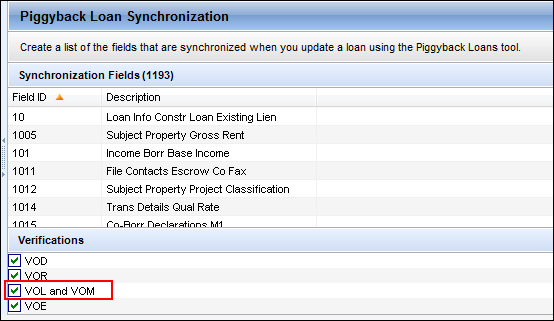
To maintain consistency for piggyback transactions, administrators should review their Piggyback Loan Synchronization configuration in the Encompass Settings (Encompass > Settings > Loan Setup > Piggyback Loan Synchronization) to ensure VOL and VOM are included when piggyback loan data is synchronized.
Looking for more information on piggyback loans in Encompass input forms or need help with implementing any technology solution within Encompass, leave us a message.


